Windows 7 update for SHA-2 support and Emsisoft

Hey everyone it has been a while!

Windows deprecated support for SHA-1 and will exclusively use SHA-2 after July 2019. If you’re on Windows 7, you have to install KB4490628 and KB4474419 for it to support SHA-2. Do note you must have Service Pack 1 for Windows 7 installed to install KB4490628 and it is recommended to install KB4490628 first then reboot before installing KB4474419.

You can read about the switch to SHA-2 here

https://support.microsoft.com/en-ph/help/4472027/2019-sha-2-code-signing-support-requirement-for-windows-and-wsus

Q: What if I don’t install the said updates for SHA-2 support in Windows 7?

A: Windows 7 wont be able to install Microsoft/Windows updates from August 2019. Your system will be vulnerable to exploits and hackers. Emsisoft Antimalware may also not work correctly and/or stop updating.

Q: I’m on Windows 10, do I need to install those updates too?

A: No. The updates for SHA-2 support are only relevant to legacy OS Windows 7 SP1, Windows Server 2008 R2 SP1 and Windows Server 2008 SP2.

Privacy or Security? Which to choose?

Privacy? Security? Which would you sacrifice over the other?

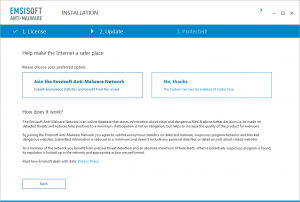
With the onset of more complex threats through the years, your antivirus software needed to catch up. For the said reason, antivirus software came up with different technologies that required to collect data from your devices. Remember this during install?

It’s nice you’re given the option to accept or decline. Some vendors dont give you that option.

Well that’s good right? Improved protection, the better. Yes with a caveat. I suggest you read the Privacy Policy too instead of just blindly clicking Accept. Why? So you will know what are actually collected. Some vendors not only collect info on programs but of yourself as well. Are you comfortable knowing that your antivirus software is collecting data about your surfing patterns, etc?

A “free antivirus” provider collects and stores the browsing history of its user even if he was browsing under the Private or Incognito mode of his browser. And since this free antivirus also scans https traffic by default, https sites were also likely not spared.

This same free antivirus provider also collects its users’ online behavior and sells them. The user isnt given the choice to accept or decline; he’s enjoined by default. So if you’re using said antivirus, be sure to disable the browser plugin or uncheck “Statistics” under its Settings. I’m now curious if same can be said for its paid-for product?

You need to be wary if your antivirus is adding or bundling more features to actually protect you or just monetize you. 😀 Well, if it were for free maybe it can be justified since there’s no free lunch right?

So let me ask you again, which would you sacrifice over the other? Privacy or Security? Do you want a bodyguard that stands outside the door while you potty or a bodyguard that gets inside with you while you potty? Haha. Well, you may not actually have to choose one over the other. Why? Since you can choose a product that protects you and at the same time respects your privacy.

Emsisoft Antimalware is a purist product that doesn’t bundle unwanted bloat and features that are unrelated to security and meant to monetize you. It was built to protect without harming your privacy. This was proven by an independent testing lab.

gpsg

Recover your USB drive’s files hidden by malware!

Good afternoon malware warriors!

I know each and every one of us had our usb drives infected even at least once. Uh-uh no use denying that! If you haven’t experienced it eh di wow. Haha. Congratulations maybe you already have Emsisoft Antimalware, naks naman siya. 😀

Anyway, I know those who’re reading this blog post want help on getting their files back. Mapa school related pa yan, work related, mapa porn collection or pirate movie collection mo supportahan taka. I’ll help you get them back.

Disclaimer: I’m not a magician ha, I’ll only help you get back files hidden by malware, not those deleted, modified or encrypted. Well maybe for the other three, in another blog post, ok? 😉

Ok, first of all make sure that you will plug the “infected” usb drive on a clean computer. So go install Emsisoft Antimalware if you have no antivirus yet or get Emsisoft Emergency kit if you’re already taken by another lover este antivirus pala huhu. 😥

After scanning with Emsisoft and making sure the computer is clean, plug the usb drive but dont open it yet. Go to My computer or This PC depending on your version of Windows and right-click the Drive letter of your usb drive and scan it with Emsisoft.

Once Emsisoft removes all malware from your usb drive, you have to get this tool – Show.exe. Save it on your Desktop and double click it. Allow it if Windows asks you. Just follow the prompts by the tool. Enter the drive letter of the usb drive, etc. Afterwards, a window will open to show you the contents of your usb drive!

I’d love to hear from you! Share your experience following this guide at the comments section below! If anyone wants to share some other tips, feel free to comment too. Let’s help each other out! I’d also appreciate if you’ll leave comments on how to improve this blog! Even typo and grammar nazis are welcome! Gogogo! Spam, advertisements, destructive (criticism) and hate comments shall be removed! Haha.

Thanks for visiting and have a malware-free day! 😎

-gpsg